Every business starts simple. Then files pile up, processes multiply, and suddenly half the workday is spent just keeping things in order. Your employees spend more time on maintaining the system than doing the actual work.
When companies identify this problem, they start to look for better process management. And that search brings them back to the back office automation.
And when implemented right, the numbers look like this. 74% of engineering and IT leaders said automation has enabled their employees to save 11-30% of the time that was spent on manual repetitive tasks, increasing productivity while reducing costs by 11-30%.
While 89% of employees have higher job satisfaction due to streamlined processes by automation. In the same report, 99% of the full-time employees have reported better work-life balance and time saved at their job.
So here’s an easy-to-understand guide on what back office automation is, its examples, and how SMEs can start back office automation.
What is back office automation?
Back office automation is a sub-category of office automation. It involves automating tasks and processes that are not linked to the customer. For example: Finance, HR, IT and Logistics. These departments are crucial for a business to run, but are done at the backend of the business, hence the name back office automation.
Back office automation benefits both the business and the employees. For the business, it reduces operational costs, improves accuracy and productivity and keeps internal processes running smoothly. For employees, it takes the repetitive, mind-numbing work off their plates. And when that’s gone, the employee experience elevates with less stress and more time to focus on meaningful, higher-value tasks instead of administrative busywork.
Let’s see back office automation in action and understand how all this actually happens.
Back office automation examples
Here are 8 back office automation examples to help you grasp the idea of how this “automation” thing works. The steps for each process are generalised, and you can have your workflow however you like.
Invoice processing
- Invoice arrives (email/upload/scan)
- System extracts key details (vendor, amount, due date, etc)
- Matches the invoice with the purchase order
- Routes to the right approver based on your set rules
- Once approved, the invoice is logged and queued for payment
Expense approvals
- Employee submits expense with a receipt
- System checks policy (limits, categories)
- Auto-approves or routes to the manager
- Approved expenses sync to accounting software
- Employee notified automatically
Employee onboarding automation
- Candidate accepts the offer
- The employee record is created automatically
- Work email, system access, and required tools are set up
- Contracts and policy documents are sent for e-signature
- Tasks are assigned to HR, IT, and the reporting manager
- The new hire receives a welcome email with their onboarding checklist
Leave management
- Employee requests leave
- System checks leave balance and policy
- Auto-approves or sends to manager
- Calendar updated
- Payroll notified automatically
Payroll data sync
- Attendance and leave data collected
- Bonuses, deductions added automatically
- Final data pushed to payroll system
- Payroll processed with clean inputs
Internal task follow-ups
- The task is assigned with a deadline
- System monitors progress
- Automatic reminders are sent before and after due dates
- Managers are notified only if delays persist
Automated reports
- Data pulled from systems daily/weekly
- Dashboards updated automatically
- Reports sent to stakeholders on schedule
Data entry elimination
- Data entered once through a form, CRM, or system
- Same data syncs across all connected tools
- Updates are reflected everywhere automatically
Back office automation software for SMEs
Okay, you know how back office automation works, but what are the tools used for it? Here’s your answer.
- Outlook: Emails, approvals, notifications
- Excel / Microsoft Lists / Google Sheets: Expenses, payroll data, vendor lists, trackers
- OneDrive / SharePoint: Contracts, invoices, employee documents
- Teams / Slack: Internal communication
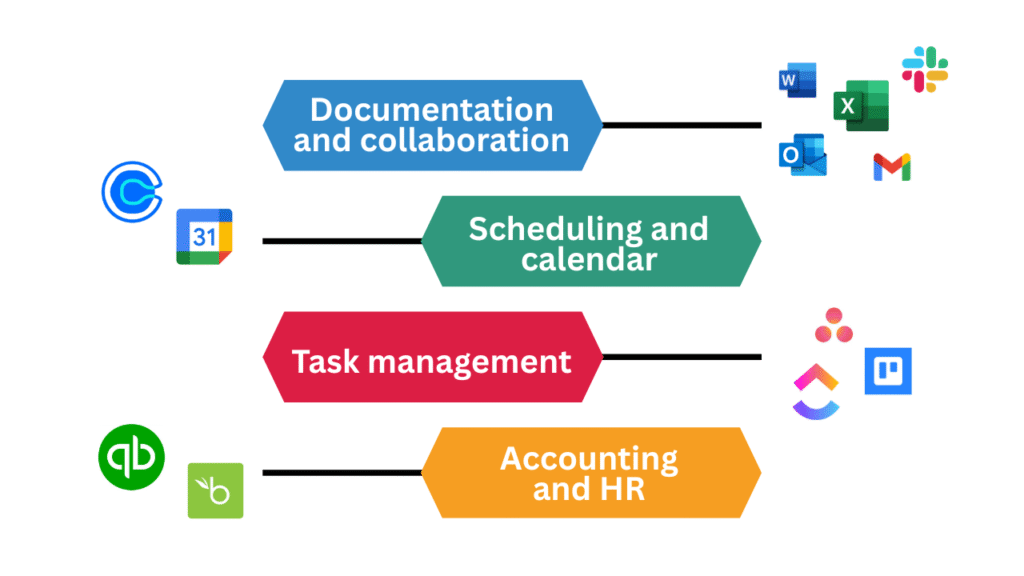
Yes, these tools are also part of the automation process. However, you’ll need automation software that connects all these tools and enables automating different processes across all apps and software.
One example of such no-code automation software is Power Automate, which is a part of Microsoft Power Tools.
Power Automate connects everything and runs workflows automatically. It receives a trigger that starts a series of steps. In our example of leave management teh trigger would be leave request submitted by the employee, and all the steps after that are automated through Power Automate.
How to start back office automation
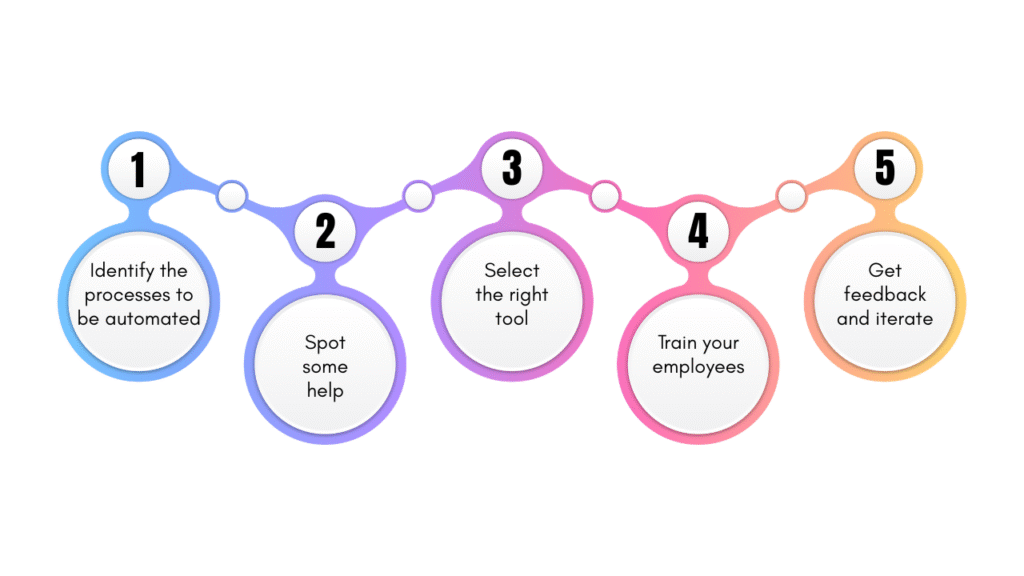
1. Identify the processes to be automated
When companies, especially SMEs, hop onto automation, they unintentionally get this first step wrong. They automate the processes, the system works perfectly, but the productivity, time-saving, and all real gains never kick in. The worst-case scenario is that the system they have put in place becomes a friction for the employees — total opposite of what they wanted in the first place.
This happens when the officials decide what to automate without employee buy-in. You might automate a not-so-important process while totally overlooking the one that halts a certain department the most.
You can jot down hundreds of tasks that can be automated, but not all of them are worth it. The key here is to be super selective and include the department and employees who work with those processes daily.
Find the workflows that are repetitive and time-consuming. The involved employees will help you pinpoint tasks and processes that will yield the most results when automated.
2. Spot some help
If you’re not familiar with automation or tech in general, and are doing this for the first time, you need to find someone to take charge of automating your business. It can be a team from your tech department, or you might need external help.
Whatever the case may be, it’s crucial to have an individual or a team dedicated to this task that can assist you in choosing the right tools and setting up the automations.
3. Select the right tool
There are countless automation software available in every domain: HR, finance, marketing, documentation, etc. We have easy-to-use, no-to-low-code beginner-friendly options and full-on complex code-heavy tools. The latter is for large and complex automations with huge amounts of data to process. It requires a dedicated team of experts to handle it.
For first-time automaters and SMEs, no-code options are the best. They are easy to set up and get your automations running quick and smooth.
One thing to note is that your automation software should be compatible with your existing systems and software, for instance, ERP and CRM. This ensures you can integrate and synchronise everything neatly to get a unified system.
4. Train your employees
Once the plan and the basics are sorted, let your team work on the automation. Meanwhile, you need to turn towards your employees.
When companies were asked what’s the biggest challenge in their way of automation, 29% ticked employee resistance and training. In fact, 37% of employees reported a fear of losing their jobs to automation.
We all have a fear of change; we like to stay in our comfort zone. And in this era of AI, technological change in the workplace often leads to people fearing their jobs and their value in the workforce.
Remember how we’re automating not only to benefit the business but also to improve our employees’ experience. And that can’t be done without addressing this fear.
Whether it’s company-wide documents, emails, meetings, or training sessions, introduce your employees to automation in some way. Tell them how it’s beneficial for them and for the company. Validate their value for the business and appreciate their hard work. Walk them through the software and make it easy for them to navigate this new change.
5. Get feedback and iterate
Once the automations are up and running, ask your employees for feedback. They’re the ones using these systems daily and can quickly spot what’s working and what isn’t. Use that input to refine workflows and improve the automation over time.
Final thoughts
I’ve tried my best to simplify back office automation for you. It all might seem difficult, and you might hesitate to start, even with the steps I’ve mentioned. The key is to onboard someone who knows this stuff and can help you figure out your automation plan.
It’s the best thing you’ll do for your business and employees.



![4 steps to start AI for operational efficiency [+Examples]](https://feriotti.com/wp-content/uploads/2026/03/1-4.png)