“AI workflow automation can save you hours in your business.”
“It’s super efficient.”
“You’re falling behind if you’re not using AI workflows.”
You might have heard similar sentences, and to catch up in this AI race, you’ve decided to try AI in your workflow automations.
“Yeah, but where do I start? What workflows can I automate with AI?”
I’ve got you. Coming from a CTO, here are 6 quick and practical AI workflow automation examples that will help you get started with AI automation right away.
Workflow automation explained
If you need a quick refresher on AI workflows, stick to this section, or you can go straight to the AI workflow use cases below.
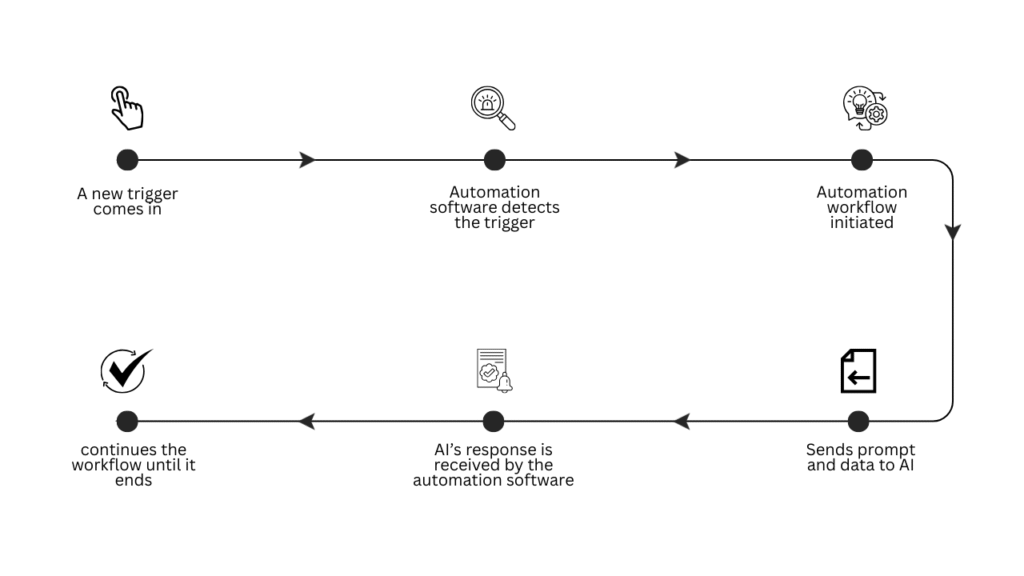
AI workflow automation simply means you use Artificial Intelligence to automate your workflows. We are talking about Large Language Models (LLMs) like ChatGPT, Gemini, and Claude. In ordinary workflow automations, you define each step, and the workflow proceeds accordingly. There’s no thinking or generative features involved. But with AI workflows, you bring in those features through LLMs.
Here’s how these processes flow. You onboard an automation tool like Zapier, Workato, Microsoft Power Automate, or Make. This is your bridge between all your different software and AI.
AI workflow automation in sales
1. Lead follow-up emails
Trigger
A sales call or meeting is logged as “Completed” in your CRM with a one-line description of the call. For example: “Interested in pro plan. Wants a demo next week.”
Workflow
- Your automation software pulls the contact’s name, company, and the one-line call note the rep logged in the CRM.
- It sends the details to AI with a preset prompt to write a follow-up email.
- The response is saved in the CRM contact’s notes or a folder of your choice.
- Automation software sends the rep a Slack message or email to review the email.
- The rep reads the draft, makes any quick tweaks, and sends it directly from their inbox.
2. Proposal summarisation
Trigger
A client submits a brief or RFP through a form on your website.
Workflow
- Your automation software detects the new form submission and automatically pulls all the filled-in fields.
- It sends the responses to AI with a defined prompt, like: “Summarise the key requirements from this client brief. List the main objectives, deliverables, budget, and timeline in clear bullet points.”
- AI returns a clean, structured summary, which is saved at your preferred destination (Google Drive, Dropbox) and titled with the client name and date.
- A Slack message or email is sent to the rep saying: “New brief received from [Client Name] — summary is ready in Google Drive.”
- The rep opens the summary, validates it against the original submission if needed, and starts building the proposal straight away.
AI workflow automation in marketing
3. Social media caption writing
Trigger
A new blog post is published on your website.
Workflow
- Your automation software pulls the blog post title and a short excerpt from the published post.
- It sends that title and excerpt to AI with a preset prompt, for example: “Write 3 social media captions for LinkedIn, Instagram, and Facebook based on this blog post.
- Keep each one short, engaging, and end with a call to action.”
- AI returns 3 ready-to-use captions that your automation software saves to a Google Doc or a folder of your choice, labelled with the blog post title and date.
- Automation software sends a Slack message or email to the marketing person to review the captions.
- The marketer does a quick review and schedules the posts.
AI workflow automation in HR
4. Employee query responses
Trigger
A new email lands in the HR team’s dedicated inbox.
Workflow
- Your automation tool detects the email and pulls out the sender’s name and the body of their query.
- The company’s HR policy documents (leave policy, payroll dates, benefits, etc.) are stored in a Google Drive folder. The automation software passes the query to AI along with the policy documents. The prompt can look like this: “Using the HR policy provided, draft a clear and friendly response to [Employee Name]’s question. Keep it concise, accurate, and professional.”
- The automation tool saves the response as a draft in the HR’s inbox, pre-addressed to the employee who sent the query.
- A Slack message or internal notification is sent to the HR team member to review the draft.
- The HR reviews the draft and hits send.
AI workflow automation in finance
5. Invoice chasing emails
Trigger
An invoice is marked as overdue in the ERP or your invoice management tool.
Workflow
- The automation software pulls the relevant details like client name, invoice number, amount due, and number of days overdue from your ERP or invoice management tool.
- The details are sent to AI with a prompt like: “Write a polite but firm payment reminder email to [Client Name] for invoice [Invoice Number] of [Amount], which is [X] days overdue. Keep it professional and end with a clear call to action to pay or get in touch.”
- The automation software receives the drafted email and sends it to the client.
- It then logs the chasing email back into the ERP or your invoice management tool against the invoice to maintain a record of when it was sent.
- Lastly, a Slack message or internal email is sent to the finance team member, informing them of the invoice chasing email.
6. Expense report summaries automation
Trigger
It’s the last day of the month.
Workflow
- The automation software is connected to your ERP or wherever you store your expenses. It pulls all the entries logged for that month: amount, category, date, and submitted by.
- It sends the raw expense data to AI to organise the expenses by category and provide a summary of total spend per category for the month.
- AI’s response is saved in your desired format (Google Doc, Excel Sheet) at your defined location/folder.
- The automation tool sends an email to the designated reviewer (e.g. Finance Manager).
- If everything looks good, the reviewer replies to the email with a simple “Approved”.
- The automation software detects the green signal and sends the summary to all the stakeholders.
Wrapping it up
I hope these examples have got your neurons firing and you now know how AI workflow automation works in a real business context.
You can now adapt these use cases to your specific workflows and requirements, or identify the processes that slow down your teams, where AI can come in handy.




![How to use AI in spend analytics? [5 use cases]](https://feriotti.com/wp-content/uploads/2026/04/1-3.png)