
91% of CRM data becomes incomplete, stale, or duplicated within a year. That’s a huge number, and your data is no different.
This guide is for SMEs who know their CRM data is a problem but do not know where to start. I’m sharing a simple guide to not only clean your CRM data but also help you maintain it while presenting the case of data cleaning with facts and figures like a leader to show it’s actual impact.
Audit your CRM data
Instead of haphazardly starting the crm data cleansing process, we will be taking things forward strategically, like a leader. We will first assess the current state of your data. This will do two things. Firstly, it will give us our starting point. Secondly, we will have a before picture to compare with and quantitatively present the effectiveness of the cleaning process.
Now, how do you check your current data quality? Every major CRM (HubSpot, Zoho, Salesforce) has some version of a data health check built in. You can use that or export your data in a CSV file and open it in Google Sheets or Excel.
- Use =COUNTA() to get the total records in any column
- Use =COUNTIF() to find duplicates
- Use =COUNTBLANK() to see how many records are missing a value in that column
- Divide blank count by total to get your field completion rate
- Highlight duplicate emails using conditional formatting
- Sort by the “Last Activity Date” column to spot records that haven’t been touched in 18+ months
- Use filters to isolate blank fields by key columns like email, phone, job title, company, one at a time
- Create a summary tab with all your baseline metrics in one place: total records, duplicate count, blank rates per field, and the oldest record date
4 Steps of CRM data cleansing
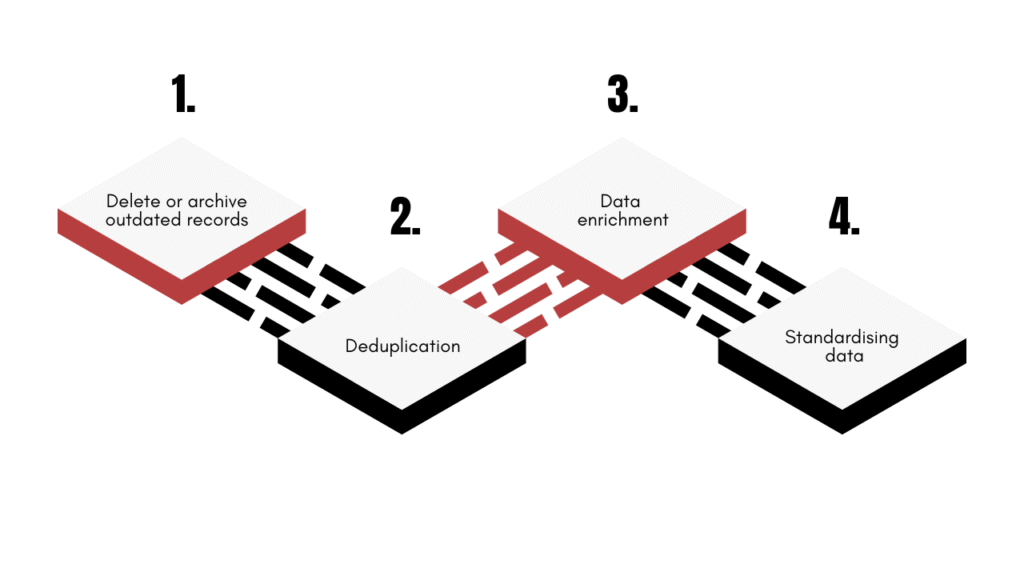
1. Delete or archive outdated records
The first step of CRM data cleansing is to get rid of all the clutter and unnecessary information. You’ll have to delete all the dormant contacts and leads. If deleting seems too much, archive them or export them to save in a separate file. Or you can run a reactivation campaign. Run a simple “we haven’t spoken in a while” email to your cold list. Anyone who opens, clicks, or replies gets pulled out and kept. Everyone else is now an easy pass.
Here’s how you can identify the outdated records. Define outdated for your business. For example, any contact with zero activity in 18 months who never converted and never engaged with an email. The threshold will vary business to business, but once set, stick to it. Use your CRM’s filter to isolate records matching your outdated criteria and delete them in bulk.
2. Deduplication
Duplicates are the most common, and hence most CRMs have a built-in deduplication feature. It lets you find duplicates within minutes and merge them with a single click. Or you can use external tools like OpenRefine’s clustering feature.
3. Data enrichment
Next, we have to fill in the empty fields because incomplete information breaks segmentation and makes reporting unreliable. The goal here isn’t to manually fill in 4,000 job titles. It’s to automate as much of it as possible.
Start with enrichment tools. Apollo.io’s free tier lets you enrich up to 50 contacts a month with job title, company size, industry, and LinkedIn URL. For higher volumes, Clay is the most powerful option. It pulls from 50+ data sources simultaneously and pushes enriched data directly back into your CRM.
For email-specific enrichment, Hunter.io’s free tier finds and verifies professional emails using just a name and company domain. Useful when you have a contact but no email.
Automate it on a schedule. Connect your enrichment tool to your CRM via Zapier or Make.
Don’t try to fill every field. Focus on the ones that actually affect your sales or marketing workflows, usually email, job title, company size, and industry.
4. Standardising data
We need everything in the same format so the data is clean and organised. The most common fields with the most amount of discrepancies are phone numbers, names, countries, company names and job titles. For example, USA, America, and the United States are the same thing, but will be seen differently by the software.
You will have to use a combination of functions to normalise the formats in Excel or Google Sheets.
Also read: 7 practical ways to better use AI in CRM [CTO’s guide]
Automating ongoing maintenance
You have cleaned your CRM data, but you know what the worst thing after that is? Ending up back in the same place a year from now. And it will inevitably happen if you do not take any measures and keep on running as before.
Here are a few tips to help you automate CRM data cleaning or at least maintain the cleaned data.
- Turn on real-time duplicate detection in your CRM settings. It prevents the build up and eliminates the need to deduplicate after six months.
- Set dropdown fields instead of free-text for things like country, industry, and lead source. A dropdown can’t be misspelled, and it maintains one single format throughout the system.
- Create a CRM data dictionary. It’ll be a simple document that defines what goes in each field and how. Share it with everyone who uses the CRM.
- Connect your CRM to an enrichment tool like Apollo.io or Clay via Zapier or Make and set it to run automatically on new contacts so every new record gets enriched automatically.
- Use Zapier or Make to automatically tag contacts as outdated after they cross your set threshold.
Final thoughts and your last task
This was a simple yet efficient CRM data cleansing process that you can follow to significantly improve your data quality.
One last thing before you go. Head back to the baseline numbers you captured in the audit and compare them to where you are now after data cleaning. Prepare a simple comparison report to document and present your work with facts and figures to show the practical impact of your work.







![How to use AI in spend analytics? [5 use cases]](https://feriotti.com/wp-content/uploads/2026/04/1-3.png)